
Per platform
| iPhone and iPad | High fidelity | |
|---|---|---|
| Android | High fidelity |
How it works
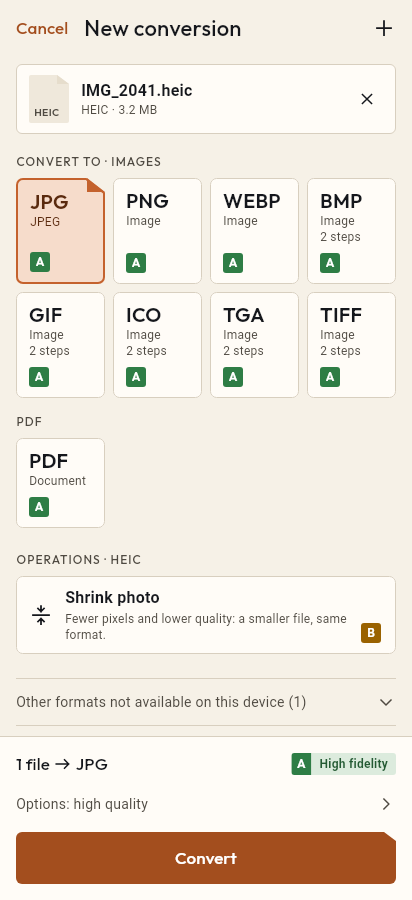
- Import the SVG file, or share it with Tramuta.
- Pick PNG among the formats.
- Tap “Convert”, then “Share” or “Save to…”.
Logos, icons and illustrations often come as SVG, a vector format that resizes without getting blurry. Many apps, social networks and word processors want a pixel image instead. Tramuta draws the SVG and saves it as PNG on your device, without uploading it, and lets you decide how large it should be.
What happens to an SVG when it becomes a PNG
The conversion is “High fidelity” on iPhone, iPad and Android. The SVG is drawn as vectors and then turned into pixels at the size you choose, so the PNG is sharp at that size; enlarging it afterwards blurs it, like any pixel image. Where the SVG draws nothing, the PNG stays transparent. Two limits are worth knowing: text uses built-in standard typefaces, for the Latin alphabet only, and an SVG element the engine can’t draw stops the conversion with a message instead of leaving you an incomplete file.
SVG to PNG on iPhone, iPad and Android
The drawing isn’t done by a browser or by the system: the SVG is traced onto a vector page by the SVG engine of the open source pdf package, and PDFium turns that page into pixels. It is the same code on every platform, so the same SVG gives the same PNG on an iPhone and on an Android tablet. An SVG with huge dimensions is scaled down in proportion, so you don’t get an image the phone can’t handle.
Options for SVG → PNG
- “Scale”: pixels per point, from 0.25 to 8, default 2. A 200 × 100 SVG becomes a 400 × 200 PNG.
- “Width (px)”: when set, it overrides the scale, and the height follows in proportion. Handy when a site asks for an icon of an exact size.
- “Quality” only appears if you pick JPG: PNG is lossless.
Converting SVG to PNG in Tramuta
- Tap “Choose or drop files” and select the .svg file, or open it in Tramuta from Files.
- Under “Convert to”, pick PNG.
- In “Options”, set the scale or the width in pixels.
- Tap “Convert”.
- Use “Share” or “Save to…”.
If you start from an image that is already made of pixels, WebP to PNG or JPG to PNG only change the format; for iPhone photos there is HEIC to PNG.
Questions
Does the PNG keep a transparent background?
Yes: wherever the SVG draws nothing, the PNG has transparent pixels. If you convert to JPG instead, the background becomes white.
How big will the PNG be?
Tramuta reads the width and height declared in the SVG (in px, pt, mm, cm or inches), otherwise its viewBox; with no size at all it uses 300 × 150. With “Scale” at 2, the default, the PNG gets twice the pixels; with “Width (px)” you set the width and the height follows in proportion.
Why does the text in my SVG look different or go missing?
Text is drawn with built-in standard typefaces that cover the Latin alphabet: a custom font is replaced, and scripts such as Cyrillic, Greek, Arabic, Chinese or emoji don’t appear. If the SVG uses an element the engine can’t draw, the conversion stops with an error message and writes no file.
Free on iPhone, iPad and Android
No ads, no in-app purchases, no account.
-
App Store
iPhone and iPad, iOS 15.0 or later.
Coming to the App Store -
Google Play
Android 7.0 or later.
Coming to Google Play -
APK for Android
Android 7.0 or later, without Google Play.
The APK is not available yet.