
Per platform
| iPhone and iPad | Best effort | What you lose: Layers and masks are lost: you get the flattened image. |
|---|---|---|
| Android | Best effort | What you lose: Layers and masks are lost: you get the flattened image. |
How it works
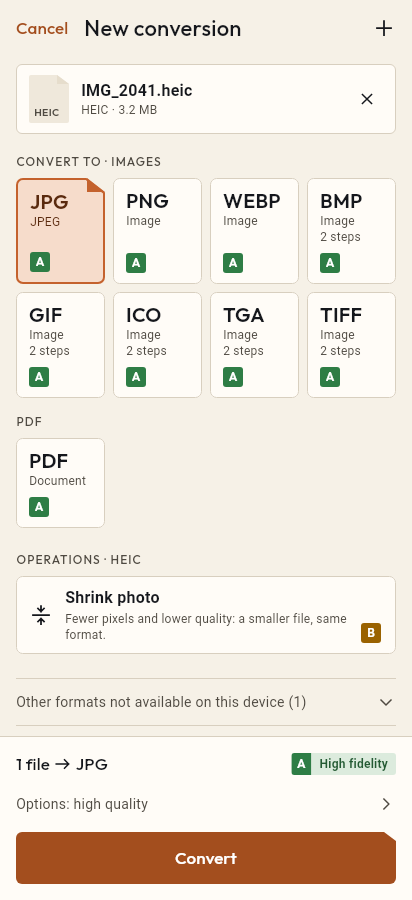
- Import the PSD file, or share it with Tramuta.
- Pick JPG among the formats.
- Tap “Convert”, then “Share” or “Save to…”.
A designer sends you a .psd file and, on your phone, you only want to look at it, forward it or drop it into a presentation. Without the program it was made in, it won’t open. Tramuta turns it into a JPG on your device, without uploading someone else’s work to an unknown website.
What you lose from PSD to JPG
On iPhone, iPad and Android the conversion is “Best effort”, and the app says why: “Layers and masks are lost: you get the flattened image.” In practice you get a single picture, like the final composition of the file: fine for viewing, sending for approval or using in a document, not for carrying on with the design. The JPG then adds its own lossy compression, set by the quality.
PSD to JPG on iPhone and iPad, and on Android
The PSD is read by a decoder bundled with Tramuta, the same on every platform: neither iOS nor Android has a system reader for this format. So the result doesn’t change between an iPhone and an Android tablet. The same bundled engine also writes the JPG. Before reading, Tramuta checks that the file isn’t truncated.
Options that matter for PSD → JPG
- “Quality”: 1 to 100, default 90. A draft for a chat needs less; a preview to print should stay high.
- “Max width” and “Max height”: PSD files are often print-sized; shrinking them gives a JPG suited to screens and email.
- “Remove metadata” (iPhone and iPad only): on by default. On Android it doesn’t appear: the JPG never carries metadata there.
How to open a PSD as JPG with Tramuta
- Tap “Choose or drop files” and pick the PSD, or open it with Tramuta from your mail app or Files using “Open in…”.
- Under “Convert to”, pick JPEG.
- In “Options”, set quality and maximum size.
- Tap “Convert”.
- Send the preview with “Share” or keep it with “Save to…”.
For images with transparency that need to become JPG, see PNG to JPG; for iPhone photos there is HEIC to JPG.
The two formats
-
Photoshop PSD
Extensions: .psd
-
JPEG
Extensions: .jpg, .jpeg
Questions
Can I edit the PSD layers after converting?
No: the JPG holds only the flattened image, that is what you would see if you printed the file. Layers, masks and editable text stay in the original PSD.
Why does Tramuta reject my PSD?
Before converting, it checks that the file is complete: a truncated PSD, for example one that only half downloaded, is rejected with an error instead of producing an image with grey or black patches. Try downloading it again.
Can I get a PNG instead of a JPG?
Yes: from the same PSD Tramuta can also produce PNG and TIFF, with the same flattened image but without JPEG’s lossy compression.
Free on iPhone, iPad and Android
No ads, no in-app purchases, no account.
-
App Store
iPhone and iPad, iOS 15.0 or later.
Coming to the App Store -
Google Play
Android 7.0 or later.
Coming to Google Play -
APK for Android
Android 7.0 or later, without Google Play.
The APK is not available yet.