
Per platform
| iPhone and iPad | High fidelity | |
|---|---|---|
| Android | High fidelity |
How it works
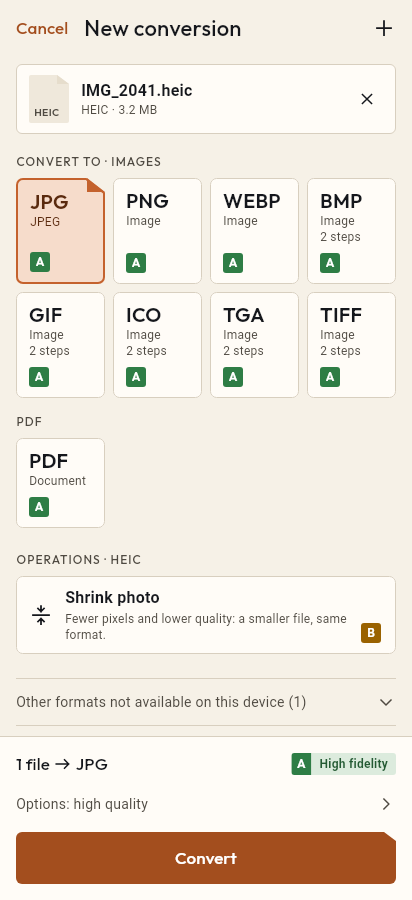
- Import the HEIC file, or share it with Tramuta.
- Pick JPG among the formats.
- Tap “Convert”, then “Share” or “Save to…”.
iPhones and iPads often save photos as HEIC. The files are small, but plenty of websites, sign-up forms, photo printers and desktop programs still only take JPG. Tramuta does the conversion on the device in your hand: the photo never goes to a server, and the JPG you get opens almost anywhere.
What happens to your photo going from HEIC to JPG
On iPhone, iPad and Android the conversion is marked “High fidelity”. The system decodes the photo and writes it again as JPEG at the quality you pick, at the original pixel size unless you set a limit. JPEG compression is lossy: the higher the quality, the larger the file. The default quality (90 out of 100) is meant for printing and sharing.
HEIC to JPG on iPhone, iPad and Android
- On iPhone and iPad, ImageIO, Apple’s built-in image engine, does both the reading and the writing.
- On Android the photo is read by ImageDecoder, Android’s own decoder, available from Android 9; the system encoder writes the JPG. Below Android 9 the conversion isn’t offered.
- Metadata behaves differently: on iPhone and iPad you can choose to keep it, while on Android the JPG always comes out without EXIF.
Options worth knowing for HEIC → JPG
- “Quality”: 1 to 100, default 90. Lower it when a form caps the file size.
- “Max width” and “Max height”: in pixels. The photo is scaled down in proportion and never enlarged, which helps with attachments and upload limits.
- “Remove metadata” (iPhone and iPad only): on by default, so the GPS location is gone before you send the photo to someone. The default follows “Keep metadata” in Settings: turn that on and the option starts off. On Android it doesn’t appear, because the JPG never carries metadata there.
How to convert HEIC to JPG in Tramuta
- Open Tramuta and tap “Choose or drop files”, or share the photos to Tramuta from Photos or Files.
- Under “Convert to”, pick JPEG.
- If needed, open “Options” for quality, size and, on iPhone and iPad, metadata.
- Tap “Convert”.
- From the result, use “Share”, “Save to…” or “Open in…”.
For a file without lossy compression there is HEIC to PNG; to put photos into a document there is HEIC to PDF. Images saved from the web as WebP are handled by WebP to JPG.
Questions
Does the JPG keep the GPS location of the HEIC photo?
Not by default: “Remove metadata” is on and strips location, camera data and the color profile. On iPhone and iPad you can turn it off to keep them; on Android the option doesn’t appear and the JPG never carries metadata, because the system encoder doesn’t write it.
Why is HEIC conversion missing on my older Android phone?
Android can only read HEIC photos from Android 9. Earlier versions have no system decoder for it, and Tramuta doesn’t ship one of its own, so the conversion isn’t available there.
Will the converted photo come out sideways?
No. The orientation recorded by the camera is applied to the pixels before the JPG is written, so the file is already upright and no longer carries a rotation tag that another app could apply twice.
Can I convert a whole batch of HEIC photos at once?
Yes: choose or share several photos together. Each one becomes its own JPG, with the same options for all of them.
Free on iPhone, iPad and Android
No ads, no in-app purchases, no account.
-
App Store
iPhone and iPad, iOS 15.0 or later.
Coming to the App Store -
Google Play
Android 7.0 or later.
Coming to Google Play -
APK for Android
Android 7.0 or later, without Google Play.
The APK is not available yet.