
Per platform
| iPhone and iPad | High fidelity | |
|---|---|---|
| Android | High fidelity |
How it works
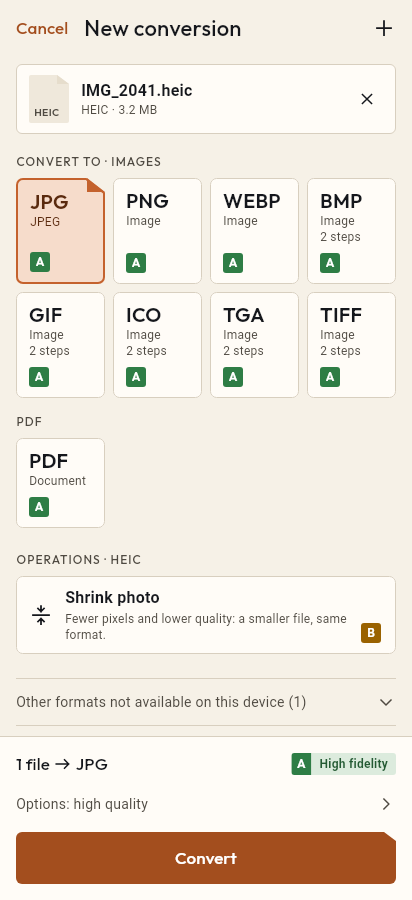
- Import the HEIC file, or share it with Tramuta.
- Pick PDF among the formats.
- Tap “Convert”, then “Share” or “Save to…”.
Snapping a receipt, a filled-in form or an ID card with an iPhone gives you HEIC files, while offices and online portals almost always ask for a PDF. Tramuta makes the jump on the device itself, so photos that often hold personal data are not uploaded anywhere.
How a HEIC photo ends up inside the PDF
The conversion is “High fidelity” on iPhone, iPad and Android. Tramuta decodes the HEIC, writes it as a JPEG at the quality you set and places that image on a PDF page without compressing it a second time. The page takes the photo’s size and proportions, and one photo gives a one-page PDF. Photographed text stays an image: to make it searchable you need OCR.
HEIC to PDF on iPhone and iPad, and on Android
- On iPhone and iPad the photo is decoded by ImageIO, Apple’s image engine.
- On Android it is read by ImageDecoder, which handles HEIC from Android 9: before that version the conversion isn’t available.
- Tramuta writes the PDF itself, in the same way on both platforms.
Options that matter for HEIC → PDF
- “Quality”: sets how heavy the image inside the PDF is (1 to 100, default 90).
- “Max width” and “Max height”: shrink the photo, and with it the page, keeping its proportions. Handy when a portal only accepts small files.
- “Remove metadata” (iPhone and iPad only): on by default, it strips GPS location and camera data from the image. On Android it doesn’t appear: the image never carries metadata there.
Steps in Tramuta from HEIC to PDF
- Tap “Choose or drop files” and pick one or more HEIC photos, or share them to Tramuta.
- Under “Convert to”, pick PDF.
- In “Options”, adjust quality and size if needed.
- Tap “Convert”.
- With several photos, tap “Continue with these files” and choose Merge PDFs to get one document; then “Share” or “Save to…”.
To send the photos as images there is HEIC to JPG. If the photos are already JPG, JPG to PDF also lets you pick A4 and a margin.
Questions
How do I get a single PDF from several HEIC photos?
Each photo becomes a one-page PDF. From the result, tap “Continue with these files” and pick “Merge PDFs”: the pages go into one document in the order you choose.
What page size does the PDF have?
The page is as large as the photo, with its proportions, not an A4 sheet. If you need A4 or Letter, convert the photo to JPG first, then the JPG to PDF and choose the size under “Page size”.
Can I select or search the text in the PDF?
No: the PDF holds a picture of the photo, not selectable text. If you photographed a document and want to search its words, run the PDF through “Recognize text (OCR)”, which reads Italian and English.
Free on iPhone, iPad and Android
No ads, no in-app purchases, no account.
-
App Store
iPhone and iPad, iOS 15.0 or later.
Coming to the App Store -
Google Play
Android 7.0 or later.
Coming to Google Play -
APK for Android
Android 7.0 or later, without Google Play.
The APK is not available yet.