
Per platform
| iPhone and iPad | High fidelity | |
|---|---|---|
| Android | High fidelity |
How it works
- Import the PDFs, or share them with Tramuta.
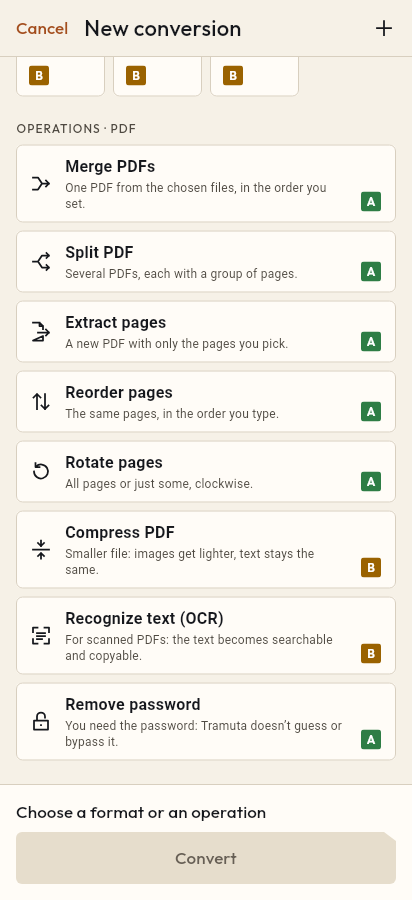
- Pick “Extract pages” among the operations.
- Tap “Convert”, then “Share” or “Save to…”.
Out of a thirty-page contract you only need the signature page; out of a manual, the warranty chapter; out of the minutes, the attachments. “Extract pages” makes a new PDF with just the pages you name and leaves the original intact. It all happens on your phone, tablet or foldable: the document never goes through a server.
What is kept when you extract pages from a PDF
Extraction is “High fidelity” on iPhone, iPad and Android. The chosen pages are copied into the new file as they are, without becoming images: you can still select and search the text, and graphics stay vector. Both platforms run PDFium, so the same range gives the same PDF.
The Extract pages option: “Pages to extract”
It is the only option and it is required: with no pages there is nothing to extract. Type numbers and ranges separated by commas, counting from 1:
- 2-3, 7 → pages 2, 3 and 7;
- 8- → from page 8 to the last;
- 4 → page 4 only.
Pages come out in the order you type them, so 7, 1 puts page 7 before page 1. A number past the last page, a backwards range or a repeated page stops the conversion with an error: better to know right away than to end up with the wrong PDF.
If you need the whole document in a different order, Reorder pages is handier; to cut it into parts of equal length, use Split PDF.
How to extract pages in Tramuta
- Open Tramuta and tap “Choose or drop files”, or send the PDF to Tramuta with “Share” or “Open in”.
- Under “Operations · PDF”, tap “Extract pages”.
- In “Options”, type the “Pages to extract”, for example 2-3, 7.
- Tap “Extract”.
- The new PDF is ready: “Share”, “Save to…” or “Open in…”.
A PDF that asks for a password to open must be unlocked first with Remove password. If you need the text of the extracted pages, carry on with “Continue with these files” to PDF to TXT.
Questions
How do I type the pages to extract?
Numbers and ranges separated by commas: 2-3, 7 takes pages 2, 3 and 7; 8- runs from page 8 to the end. Pages are counted from 1.
Do the pages come out in the order I type?
Yes: with 7, 2-3 the new PDF starts with page 7, then pages 2 and 3. So you can extract and reorder in a single pass.
What if I type a page that doesn’t exist, or repeat one?
The conversion won’t start: a page past the last one, a backwards range such as 5-2, or a page typed twice is an error, rather than a PDF different from the one you wanted.
Does the original PDF lose those pages?
No. “Extract pages” writes a new file with the chosen pages; the source document stays as it was.
Free on iPhone, iPad and Android
No ads, no in-app purchases, no account.
-
App Store
iPhone and iPad, iOS 15.0 or later.
Coming to the App Store -
Google Play
Android 7.0 or later.
Coming to Google Play -
APK for Android
Android 7.0 or later, without Google Play.
The APK is not available yet.