
Per platform
| iPhone and iPad | High fidelity | |
|---|---|---|
| Android | High fidelity |
How it works
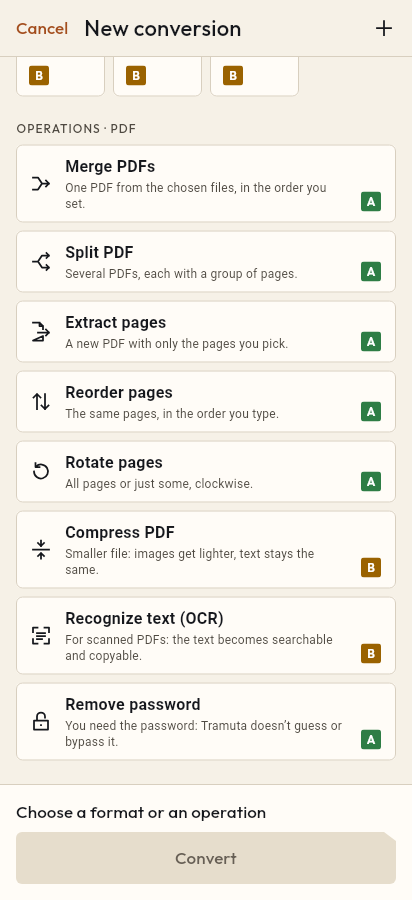
- Import the PDFs, or share them with Tramuta.
- Pick “Merge PDFs” among the operations.
- Tap “Convert”, then “Share” or “Save to…”.
Forms that must go out as one attachment, receipts scattered across downloads, chapters scanned one at a time: merging PDFs is one of the most common jobs, and it usually means uploading personal documents to a website. With “Merge PDFs” Tramuta builds a single PDF from the files you pick, right on your phone, tablet or foldable, with no network.
What stays the same when you merge PDFs
Merging is “High fidelity” on both iPhone and iPad and Android. The pages of each document are imported into the new file one after another, without being redrawn or turned into images: text, vector graphics and pictures are the ones from the originals. The result holds every page of the first file, then every page of the second, and so on.
If one of the files is damaged or is not a PDF, the merge stops with an error and leaves no half-written file behind.
Setting the merge order
When the draft holds at least two PDFs and you choose “Merge PDFs”, the files turn into an ordered list, “Merge order”. Drag the rows, or open a file’s menu and use “Move up”, “Move down”, “Move to start”, “Move to end”. “Add PDFs” brings in more files without starting over. There are no other settings: the order of the list is the order of the pages in the result.
iPhone, iPad and Android use the same engine, PDFium, so the output doesn’t change from one device to another.
How to merge PDFs in Tramuta
- Open Tramuta, tap “Choose or drop files” and pick the PDFs. You can also send them from Files, Mail or another app with “Share” or “Open in”.
- Under “Operations · PDF”, tap “Merge PDFs”.
- Arrange the files in the “Merge order” list.
- Tap “Merge”.
- From the result, use “Share”, “Save to…” or “Open in…”. “Continue with these files” passes the merged PDF to another operation, for example Compress PDF before emailing it.
To change the page order inside a single PDF there is Reorder pages; for the opposite job, getting several files out of one, there is Split PDF. If you start from photos, go through JPG to PDF or HEIC to PDF first.
Questions
How many PDFs can I merge at once?
At least two: with a single PDF the operation won’t start. You can add more from the “Merge order” list with “Add PDFs”, even after choosing the first ones.
Do the merged pages become images?
No. Tramuta copies the pages of each PDF into the new file as they are, so the text stays selectable and searchable just like in the originals.
Can I merge a password-protected PDF?
Not directly: merging doesn’t ask for a password, and an encrypted PDF stops with “Password-protected PDF”. Remove the protection first with “Remove password”, using the password you know, then merge the unlocked file.
Can photos go into the merge too?
Only PDFs go into the merge; other files in the same draft follow their own choice. For a photo, convert JPG or HEIC to PDF first, then merge the resulting PDFs.
Free on iPhone, iPad and Android
No ads, no in-app purchases, no account.
-
App Store
iPhone and iPad, iOS 15.0 or later.
Coming to the App Store -
Google Play
Android 7.0 or later.
Coming to Google Play -
APK for Android
Android 7.0 or later, without Google Play.
The APK is not available yet.