
Per platform
| iPhone and iPad | High fidelity | |
|---|---|---|
| Android | High fidelity |
How it works
- Import the PDFs, or share them with Tramuta.
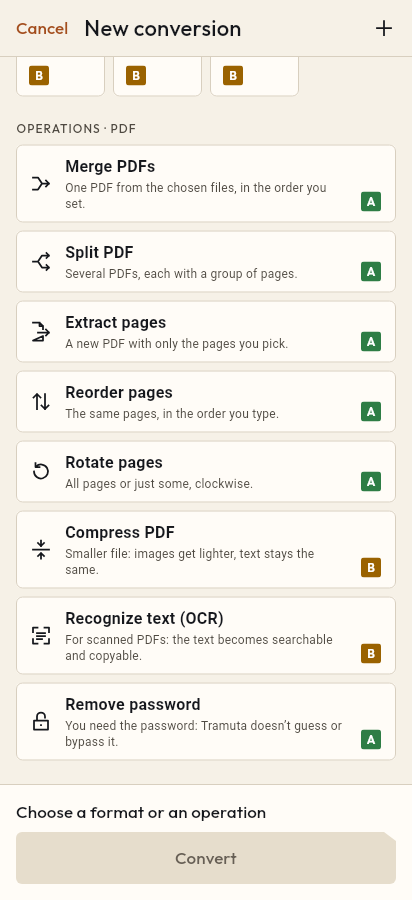
- Pick “Remove password” among the operations.
- Tap “Convert”, then “Share” or “Save to…”.
Bank statements, payslips and medical reports often arrive password-protected: fine for sending, less so when the file has to be archived, merged with others or uploaded to a portal that rejects encrypted PDFs. “Remove password” makes a copy of the PDF without protection, as long as you know the password. The work happens on your phone, tablet or foldable, without sending the document to an online service.
What Remove password does and doesn’t do
The operation is “High fidelity” on iPhone, iPad and Android: the PDF is opened with the password you type and saved again without encryption, with the same pages. A PDF can have two passwords: the one that opens it (user password) and the owner password, which limits printing, copying or editing. If the PDF asks for a password to open, either one works; if it opens but only has limits, you need the owner password. The new file opens without asking for anything and comes out with “unlocked” in its name; the original stays protected.
What it doesn’t do, on purpose:
- it doesn’t guess or bypass the password: without the right password you get nothing;
- it doesn’t add a password: protecting a PDF on output is not available in this version;
- it doesn’t store the password: it is only used for the job in progress.
With a wrong password, or none, the job stops with “Password-protected PDF” (“The PDF password is missing or wrong.”) and no file is written.
The Remove password option: “PDF password”
It is the only option and it is required: “The password the PDF was protected with. Tramuta doesn’t save it.” The field is confidential: the value never goes to disk, and if the app is closed before the job finishes, Tramuta shows “Password needed again”.
Some operations take the password directly, with no need to unlock first: Compress PDF, Recognize text (OCR), PDF to TXT and PDF to DOCX. Merge, split, extract, reorder and rotate don’t: for those, remove the password here first, then carry on with “Continue with these files”, for example to Merge PDFs.
On iPhone, iPad and Android the encryption is opened by PDFium, the same engine as the other PDF operations.
How to remove a PDF password in Tramuta
- Open Tramuta and tap “Choose or drop files”, or send the PDF with “Share” or “Open in”. An encrypted PDF shows “Password protected”.
- Under “Operations · PDF”, tap “Remove password”.
- In “Options”, type the “PDF password”.
- Tap “Remove password”.
- The unlocked PDF is ready: “Share”, “Save to…” or “Open in…”.
Questions
Can Tramuta open a PDF whose password I’ve forgotten?
No. “Remove password” only works with the right password: Tramuta doesn’t guess or bypass it. Without the password the PDF stays as it is.
The PDF opens, but I can’t print it or copy its text: does Remove password unlock it?
Only if you know the owner password, the one that set the limits on printing, copying and editing. The file opens without it, but Tramuta only removes the limits with that password: with another one, or none, the job stops and no file is written.
Is the password stored anywhere?
No. It stays in memory only for the job in progress and never goes to disk: if you close the app before the end, Tramuta asks you to type it again.
Can I add a password to a PDF too?
Not in this version: today Tramuta removes protection but doesn’t add it. Password protection on output is planned for a later version.
What happens if I type the wrong password?
The job stops with “Password-protected PDF” and no file is written. Tap “Try again” and type the correct password.
Free on iPhone, iPad and Android
No ads, no in-app purchases, no account.
-
App Store
iPhone and iPad, iOS 15.0 or later.
Coming to the App Store -
Google Play
Android 7.0 or later.
Coming to Google Play -
APK for Android
Android 7.0 or later, without Google Play.
The APK is not available yet.