
Per platform
| iPhone and iPad | Best effort | What you lose: Images are resampled and re-encoded: the file is smaller, photos lose detail. Text stays the same. |
|---|---|---|
| Android | Best effort | What you lose: Images are resampled and re-encoded: the file is smaller, photos lose detail. Text stays the same. |
How it works
- Import the PDFs, or share them with Tramuta.
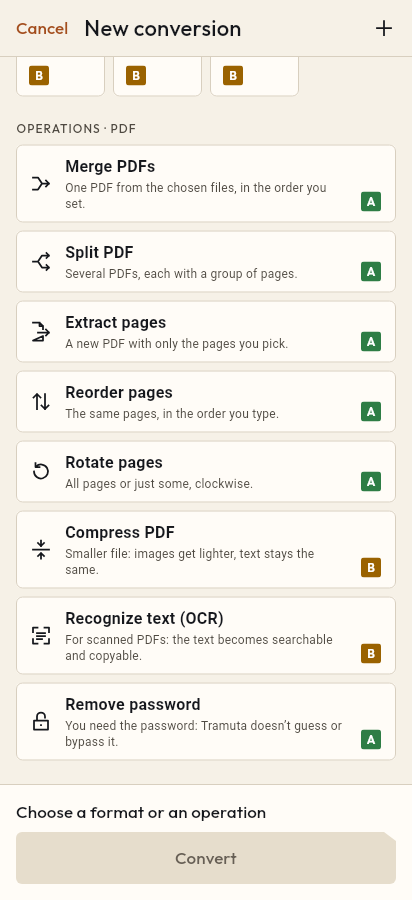
- Pick “Compress PDF” among the operations.
- Tap “Convert”, then “Share” or “Save to…”.
The email attachment limit, a portal that accepts only a few megabytes, a PDF of photos taking up too much room on the phone: the weight of a PDF almost always sits in its images. “Compress PDF” lightens the images inside the document and leaves everything else alone. It runs on the device: the file is not uploaded to any server.
What you lose when you compress a PDF
Compression is “Best effort” on iPhone, iPad and Android, and the app says so before it starts: “Images are resampled and re-encoded: the file is smaller, photos lose detail. Text stays the same.”
In practice, Tramuta doesn’t turn pages into pictures. It finds the images on each page, brings them down to the resolution you choose and re-encodes them as JPEG. Text, fonts and vector graphics stay the original ones. Some images are deliberately left as they are:
- images already in JPEG and already below the chosen resolution;
- images with transparency or a mask, which a JPEG would lose;
- images whose new version would not be any lighter.
A scan stays a scan: the page image gets lighter but does not become text. That is what Recognize text (OCR) is for. A digitally signed PDF is not compressed, because the signature would no longer be valid.
The Compress PDF options
- “Image resolution”: 72 to 300 DPI, default 150. Lower means a smaller file.
- “JPEG quality of the images”: 30 to 95, default 75. Higher means sharper images and a larger file.
- “Pages”: empty means all; with 1-3, 5 only the images on those pages are lightened.
- “PDF password”: only if the PDF is protected. The result stays protected with the same password.
On iPhone, iPad and Android the work is done by PDFium, with the same logic.
How to compress a PDF in Tramuta
- Open Tramuta and tap “Choose or drop files”, or send the PDF with “Share” or “Open in”.
- Under “Operations · PDF”, tap “Compress PDF”.
- If you like, open “Options” and change resolution and quality.
- Tap “Compress”.
- Send the result with “Share”, or use “Save to…” or “Open in…”.
If you need to send several documents as one, first Merge PDFs and then compress the merged file. If you still have to build the PDF from photos, you can lighten them first with “Shrink photo” and then lay them out with JPG to PDF.
Questions
Why is my compressed PDF almost as large as before?
“Compress PDF” only lightens images. A text-only PDF, or one whose photos are already JPEG below the chosen resolution, has little or nothing to shrink: try lowering “Image resolution”.
Does the text get blurry?
No: text and vector graphics are not touched and stay selectable. Only the images change, resampled and re-encoded as JPEG.
Why won’t a signed PDF compress?
Any change would make the digital signature invalid, so Tramuta stops with “Signed PDF” and writes nothing. If you don’t need the signature, remove it before compressing.
Can I compress a password-protected PDF?
Yes, by typing the “PDF password”. The compressed file stays protected with the same password; Tramuta doesn’t save the password.
Free on iPhone, iPad and Android
No ads, no in-app purchases, no account.
-
App Store
iPhone and iPad, iOS 15.0 or later.
Coming to the App Store -
Google Play
Android 7.0 or later.
Coming to Google Play -
APK for Android
Android 7.0 or later, without Google Play.
The APK is not available yet.