
Per platform
| iPhone and iPad | High fidelity | Produces several files. |
|---|---|---|
| Android | High fidelity | Produces several files. |
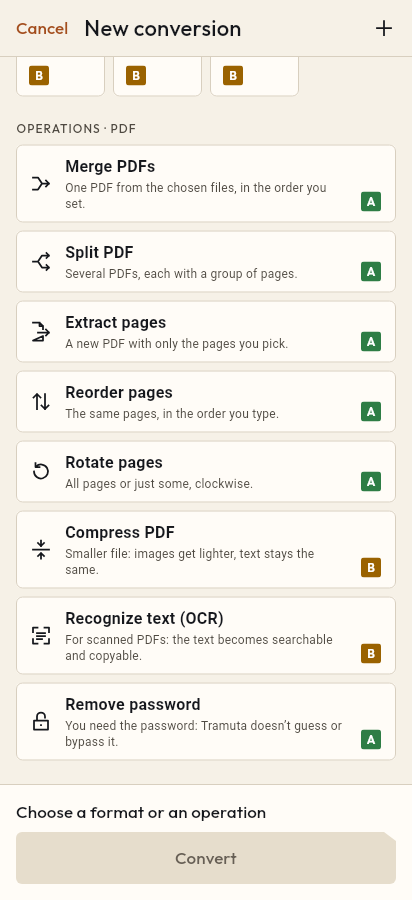
How it works
- Import the PDFs, or share them with Tramuta.
- Pick “Split PDF” among the operations.
- Tap “Convert”, then “Share” or “Save to…”.
A PDF too large for an online form that accepts only a few megabytes, one scan holding several documents back to back, a yearly statement to send month by month: sometimes the single file is the problem. “Split PDF” breaks it into several PDFs, each with a group of pages, on your own device and without sending it anywhere.
What changes when you split a PDF
Splitting is “High fidelity” on iPhone, iPad and Android. Each new file holds pages copied from the original as they are, without being redrawn: text stays selectable, graphics stay vector, images are not recompressed. The source document is left untouched.
This conversion produces several files. They come out numbered in page order: the first has the result’s name, then come -2, -3 and so on. If you cancel halfway, no partial file is left.
The Split PDF option: “Pages per file”
There is one option, “Pages per file”: how many pages go into each output PDF. The default is 1, so without changing anything you get one PDF per page. With 2, a 3-page document becomes two files, one with 2 pages and one with 1: the last file takes whatever is left.
If you need groups of different lengths, or just some pages, the right choice is Extract pages, which accepts ranges such as 2-3, 7. For the opposite job, putting several files back together, there is Merge PDFs.
The engine is PDFium on both iPhone and iPad and Android: same result on both systems.
How to split a PDF in Tramuta
- Open Tramuta and tap “Choose or drop files”, or send the PDF to Tramuta from another app with “Share” or “Open in”.
- Under “Operations · PDF”, tap “Split PDF”.
- Open “Options” and set “Pages per file”.
- Tap “Split”.
- The result lists the numbered files: use “Share”, “Save to…” or “Open in…”.
A password-protected PDF stops with “Password-protected PDF”: remove the protection first with Remove password, if you know it. If you want the pages as pictures instead, the conversion to use is PDF to JPG.
Questions
What are the output files called?
They are numbered: the first takes the result’s name, the next ones get -2, -3 and so on before the extension, in page order. You find them together in the job’s result.
What if the pages don’t divide evenly?
The last file gets the pages that are left. A 7-page PDF with “Pages per file” set to 3 gives two 3-page files and one 1-page file.
Can I split at points I choose, say after page 4 and page 9?
“Split PDF” only cuts into groups of the same length. To get one exact piece, use “Extract pages” with the range you need, for example 5-9.
Free on iPhone, iPad and Android
No ads, no in-app purchases, no account.
-
App Store
iPhone and iPad, iOS 15.0 or later.
Coming to the App Store -
Google Play
Android 7.0 or later.
Coming to Google Play -
APK for Android
Android 7.0 or later, without Google Play.
The APK is not available yet.