
Per platform
| iPhone and iPad | Best effort | What you lose: The layout is simplified: margins and positions may shift. |
|---|---|---|
| Android | Best effort | What you lose: The layout is simplified: margins and positions may shift. |
How it works
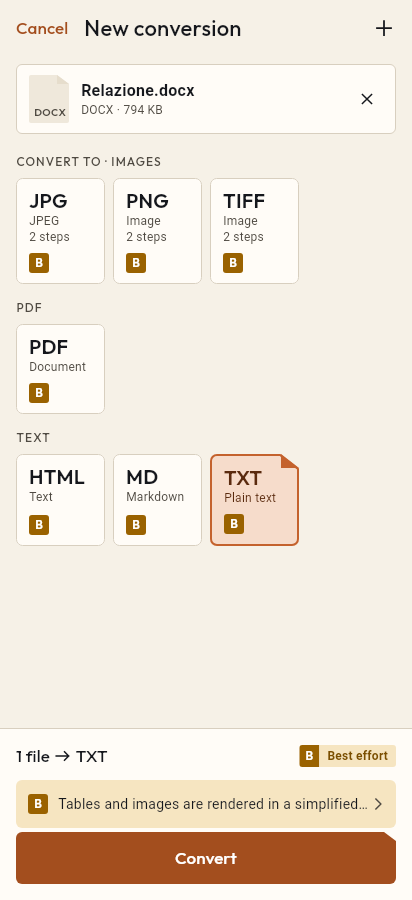
- Import the DOCX file, or share it with Tramuta.
- Pick PDF among the formats.
- Tap “Convert”, then “Share” or “Save to…”.
DOCX to PDF is the hand-in conversion: an essay, a CV, an application to attach in a format nobody edits by accident and that opens the same on every computer. Tramuta does it on the device, offline, without Word and without uploading the file to a website.
How Tramuta lays out a DOCX as PDF
On iPhone, iPad and Android the route is the same. Tramuta reads the document, turns it into an HTML page with a print style sheet, and has the system web view print it to PDF with network access blocked. iPhone and iPad also have a system document renderer, but in tests on sample files it dropped footnotes and page breaks and printed the text too small, so Tramuta does not use it for DOCX.
What DOCX to PDF keeps and what shifts
Fidelity is “Best effort” everywhere: “The layout is simplified: margins and positions may shift.”
Into the PDF go: headings from the document’s styles, paragraphs, bold, italic, underline, strikethrough, text color and size, bulleted and numbered lists including nested ones, tables with merged cells and shading, links, embedded images, page breaks, and simple footnotes, gathered at the end of the document.
Left out: text boxes, headers and footers, page numbers and fields, comments and tracked changes, charts, and table column widths. Images in EMF, WMF or TIFF become a placeholder. Compared with the original, what changes most is hand-made list indentation and multi-level numbering (1.1, 1.2).
Options
There is a single option, “Page size”: A4 (default) or Letter. Printing has a 60-second limit: if a very long or complex document doesn’t finish in time, Tramuta tells you instead of handing over half a PDF.
How to do it in Tramuta
- Tap “Choose or drop files” and pick the DOCX, or open it from Mail or Files with Share or “Open in…”.
- Under “Convert to”, pick PDF.
- In “Options”, choose A4 or Letter.
- Tap “Convert”, then “Share”, “Save to…” or “Open in…”.
For spreadsheets there is XLSX to PDF; for presentations, on iPhone and iPad only, PPTX to PDF. If you need the document as Markdown, see DOCX to Markdown. Several PDFs to hand in together? Combine them with Merge PDFs.
Questions
Will the PDF look exactly like the document in Word?
No: fidelity is “Best effort”. Text, styles, lists, tables and images come across, but margins and positions may shift, and some parts, such as headers and footers, are not printed.
Are footnotes kept?
Footnotes made of plain text are, gathered at the end of the document. A footnote containing tables or images is replaced by a placeholder.
Do I need Word on my phone?
No. Tramuta reads the DOCX file itself and has the system web view print it to PDF, with no other app and no network.
Can I convert an old .doc file too?
On iPhone and iPad, yes, through the system renderer with best-effort fidelity. On Android, no: there is no on-device engine for old Office files.
Free on iPhone, iPad and Android
No ads, no in-app purchases, no account.
-
App Store
iPhone and iPad, iOS 15.0 or later.
Coming to the App Store -
Google Play
Android 7.0 or later.
Coming to Google Play -
APK for Android
Android 7.0 or later, without Google Play.
The APK is not available yet.