
Per platform
| iPhone and iPad | High fidelity | |
|---|---|---|
| Android | High fidelity |
How it works
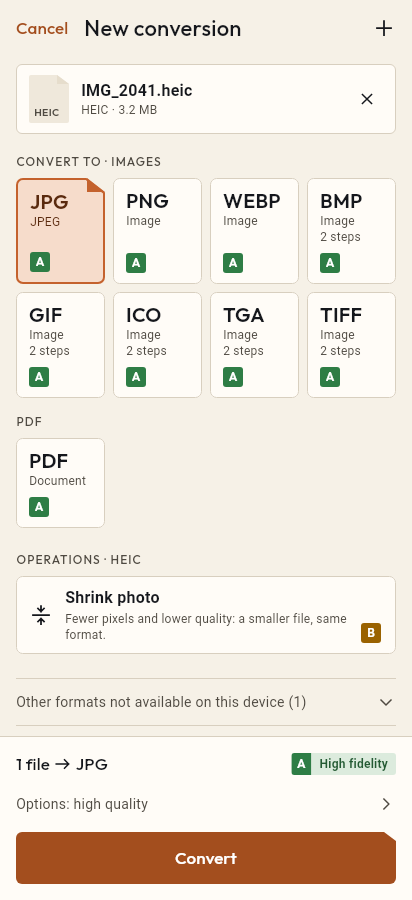
- Import the JPG file, or share it with Tramuta.
- Pick PDF among the formats.
- Tap “Convert”, then “Share” or “Save to…”.
Offices, schools and online portals often want documents as PDF, even when all you have is a photo of a form or a JPG scan. Tramuta lays the image out in a PDF on your own device, so personal documents never pass through a conversion website.
What the JPG becomes inside the PDF
The conversion is “High fidelity” on iPhone, iPad and Android, and here that is literal: the JPEG’s compressed data goes into the PDF without recompression, so the photo loses nothing. The metadata, on the other hand, is removed by default: the EXIF block, with the GPS location and the camera model, plus XMP, IPTC and any data appended after the image. The color profile stays, because without it the page colors would change. The orientation saved by the camera is applied to the page without recompressing the image: a photo taken in portrait comes out upright. Each image becomes one page. With the page set to “As large as the image” the PDF takes the photo’s dimensions; with A4 or Letter the image is centered and scaled to fit, keeping its proportions. Photographed text stays an image: to search and copy it, run OCR afterwards.
JPG to PDF on iPhone, iPad and Android
Tramuta writes the PDF itself, with the same engine on both platforms, so you get the same result on an iPhone, an iPad or an Android foldable. It doesn’t depend on virtual printers or system services.
Options for JPG → PDF
- “Page size”: “As large as the image” (default), A4 or Letter. A4 or Letter is the choice for a document to print or attach to an application.
- “Margin (mm)”: white space on every side, from 0 to 50 millimeters. On A4 or Letter a few millimeters stop the printer from cutting the edges.
- “Remove metadata” (iPhone and iPad only): on by default, it strips the GPS location and camera data. The default follows “Keep metadata” in Settings: turn that on and the option starts off. On Android it doesn’t appear: the metadata is always removed.
How it’s done: JPG to PDF in Tramuta
- Tap “Choose or drop files” and pick one or more JPGs, or share them to Tramuta from Photos, Files or your gallery.
- Under “Convert to”, pick PDF.
- In “Options”, choose the page size and margin.
- Tap “Convert”.
- With several images, tap “Continue with these files” and use Merge PDFs; then “Share” or “Save to…”.
For iPhone photos in HEIC there is HEIC to PDF; for the reverse, from a PDF to images of its pages, there is PDF to JPG.
Questions
Does the photo lose quality inside the PDF?
No: the JPG’s compressed data goes into the PDF as it is, without being recompressed. The PDF weighs about as much as the original photo.
Does a photo taken in portrait come out sideways in the PDF?
No. Tramuta reads the orientation the camera saved in the JPG and applies it to the page: the photo comes out upright and, with “As large as the image”, the page is portrait too. The image is not recompressed.
Does the photo’s GPS location end up in the PDF?
Not by default: before placing the JPG in the PDF, Tramuta strips its metadata (EXIF with the GPS location and camera data, XMP, IPTC and any data trailing the file), without recompressing the image. Only the color profile stays, because it is needed to show the right colors. On iPhone and iPad you can keep the metadata by turning off “Remove metadata”; on Android the option doesn’t appear and the metadata is always removed.
How do I put several JPGs into one PDF?
Each image becomes a one-page PDF. After converting, tap “Continue with these files” and choose “Merge PDFs”; you can reorder the files before merging.
Can I use the same conversion for PNG files?
Yes: PNG, WebP, GIF, BMP, TIFF, ICO and TGA convert to PDF with the same page and margin options. Those images are decoded and placed as pixels, while a JPG goes in with its original compressed data, without recompression. Transparency is kept: behind transparent areas PDF readers show the page background, usually white. From an ICO icon the largest image is used.
Free on iPhone, iPad and Android
No ads, no in-app purchases, no account.
-
App Store
iPhone and iPad, iOS 15.0 or later.
Coming to the App Store -
Google Play
Android 7.0 or later.
Coming to Google Play -
APK for Android
Android 7.0 or later, without Google Play.
The APK is not available yet.